
Mercedes Navigation Map Update: The Complete Technical Guide to NTG & MBUX Activation
Welcome to the global engineering hub for your Mercedes-Benz map architecture. If you are a Mercedes-Benz owner or an independent technician looking to perform a flawless Mercedes navigation map update, you have found the definitive portal. At mercedes-coding.com, we specialize in delivering authentic, high-speed Mercedes-Benz Map activation codes at good prices, providing support for any region and any infotainment ecosystem from legacy systems up to the groundbreaking MBUX multimedia system and NTG7 platform.
1. Identify Your Mercedes Infotainment System (NTG vs MBUX)
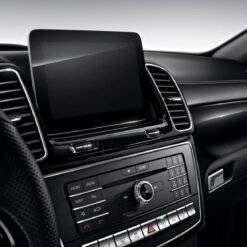
Before initiating a Mercedes-Benz map update, it is absolutely essential to correctly diagnose the exact generation of your vehicle’s head unit. Mercedes-Benz employs different software platforms depending on the model year, series, and body style. For instance, a Mercedes C-Class MBUX system requires completely different installation files and parameters compared to a Mercedes GLC 300 MBUX system or an older system utilizing an external navigation SD card.
The Infotainment Architecture Evolution Matrix
Review the technical reference table below to see where your vehicle falls in the hardware generation pipeline:
| Hardware Generation | Common Vehicle Models | Primary Media Media Type | Licensing Requirement |
|---|---|---|---|
| NTG 3.5 / 4.0 | W221 S-Class, W216 CL-Class | DVD / PCMCIA / USB Transfer | 6-Character License PIN |
| NTG 4.5 / 4.7 | W204 C-Class, W212 E-Class, W166 ML | Mercedes Map Update USB / SD | VIN-Locked Map PIN Code |
| Becker Map Pilot | W176 A-Class, W246 B-Class (Early) | Removable Becker map pilot navigation module | Direct Module Firmware Flash |
| NTG 5s1 / 5.2 / 5.5 | W205 C-Class, X253 GLC, W213 E-Class | High-Speed USB 3.0 / SD card navigation | VIN-Locked Map PIN Code |
| NTG 6 (MBUX Gen 1) | W177 A-Class, H247 GLA, V167 GLE | USB-C Drive / Online OTA Sync | VIN-Locked Map PIN Code |
| NTG 7 (MBUX Gen 2) | W223 S-Class, W206 C-Class, R232 SL | High-Capacity USB-C / Cloud Sync | VIN-Locked Map PIN Code |
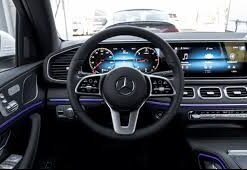
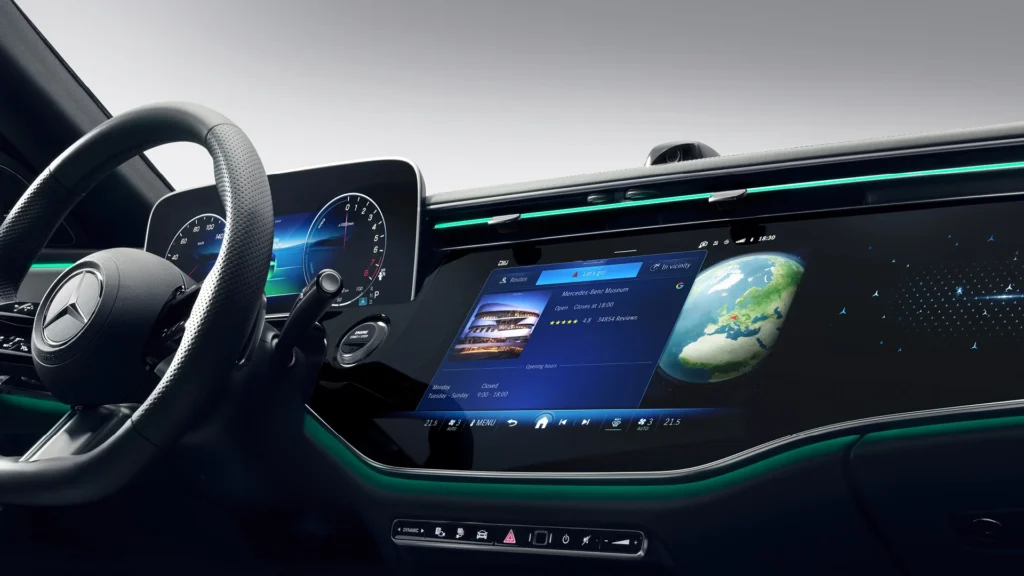
If you look at your dashboard and see a massive, seamless glass dashboard stretching from the driver’s pillar to the passenger side, your vehicle is equipped with the MBUX hyperscreen. Understanding what MBUX (Mercedes-Benz User Experience) is helps owners realize that modern updates do not just modify map geometry—they update the entire semantic layer of the MBUX infotainment system, which includes voice commands, AI predictions, and graphical layers.
2. The Mechanics of Mercedes-Benz Map Activation Codes
Why does a Mercedes-Benz navigation map update require an activation key? Every modern Mercedes-Benz vehicle contains an active security matrix designed into its central gateway (often referenced via the Mercedes-Benz gate map protocols). When you inject new geographic data into your vehicle via a Mercedes map update USB, the head unit analyzes the metadata of the maps and compares it with the mathematical value of your 17-digit Vehicle Identification Number (VIN).
Technician Pro-Tip: The activation PIN is a 6-character alphanumeric sequence that serves as a unique software cryptographic license. It is strictly tied to one specific VIN and one specific map version (e.g., Europe V19 2025). It cannot be reused on another vehicle, nor will it work if you download the wrong regional database. Always check your system files carefully before requesting a token.
At mercedes-coding.com, we clear away the excessive diagnostic fees charged by major retail dealerships. We offer authentic Mercedes-Benz Map activation codes at good prices, powered by a 24/7 automated query engine. This server instantly interfaces with secure vehicle databases to generate your precise Mercedes navigation authorization keys without delays.
3. Mercedes Map Update Download Center (Free Options)
A frequent error among owners is paying premium prices for physical storage media when they only need the license token. We provide access to direct, high-speed data mirrors for your Mercedes map update download targets. By acquiring the source code independently, you eliminate physical shipping constraints and logistics costs.
Accessing Your Data Resource Portfolio
- Mercedes map update download free: Registered commercial accounts gain immediate access to clean, uncorrupted ISO and bin files for European, North American, Asian, and Middle Eastern geographic databases.
- Mercedes map update online free: For legacy units or those configured with basic setups, checking your software parameters via our cloud validator is entirely free.
- Mercedes-Benz navigation free download pdf: To assist DIY enthusiasts, we offer a comprehensive technical manual outlining structural file parameters and folder organization schemas completely free via PDF download.
- Mercedes map update app: For newer vehicles equipped with Mercedes MBUX coding capability, the file structure can be initialized directly via the desktop variant of the download utility manager app.
Whether you need a legacy Mercedes-Benz navigation update 2020 free database to restore an older vehicle to factory spec or you are hunting for a modern Mercedes-Benz navigation update 2020/2025 suite for a freshly imported car, maintaining a clean storage preparation workflow is non-negotiable.
4. Step-by-Step Installation: USB, SD Card, & Becker Map Pilot
Because the configuration processes vary wildly based on whether your Mercedes uses a navigation update via flash storage, a dedicated navigation SD card for Mercedes, or an external module, we have detailed each protocol explicitly below.
Method A: Modern USB Flashing (NTG 4.5, 5.2, 5.5, 6)
This is the standard execution loop for the vast majority of vehicles currently on the road, including models utilizing the classic COMAND screen or the early-stage Mercedes MBUX software layers.
- Prepare a high-quality solid-state USB 3.0 flash drive with at least 64GB of space. Format the volume to NTFS (or exFAT if configuring an NTG 5.5 or higher platform).
- Execute your Mercedes map update online download, and extract the compressed directories directly into the root folder of the USB device. Do not create nested subfolders. The raw configuration files (such as
.fevor.gmafiles) must be immediately visible upon clicking the drive letter. - Enter your vehicle, start the combustion engine, and allow the primary infotainment computer to finish its boot sequence completely. Keep the engine running during this process to prevent power management systems from going into Eco-Shutdown.
- Insert the prepared media into the primary media integration port (typically located in the central armrest console; note that charge-only ports will not interface with the system).
- The interface will refresh, stating: “A new navigation database has been found. Do you wish to start the update process?” Confirm by selecting **Yes**.
- The system will display a prompt demanding your unique Mercedes navigation SD card or activation license key. Input the 6-character alphanumeric code secured from mercedes-coding.com.
- Allow the progress index to transition from 0% to 100%. This can require roughly 30 to 50 minutes. Once finalized, confirm the system reset command.
Method B: SD Card Navigation Deployment (Garmin Map Pilot / Audio 20)
For vehicles requiring a dedicated Mercedes-Benz SD navigation card or SD card navigation unit, the setup uses different execution logic:
- Ensure you know how to install Mercedes-Benz navigation SD card arrays securely. The card features an integrated write-protection slider tab along its lateral border. Ensure this tab is switched to the “Write” profile before formatting or updating.
- Insert the navigation SD card into your personal computer’s card reader node. Use the approved calibration software tool to write the data maps completely.
- Turn off your vehicle’s ignition. Slide the physical SD card smoothly into the dedicated dashboard slot until it latches click-tight.
- Power on the electronics. The screen will read: “Lock SD Card to VIN?” Note that confirming this permanently locks that specific hardware profile to your vehicle. Click confirm to initialize the operational environment.
Method C: Updating the Becker Map Pilot Module
If your glovebox contains a physical docking cradle for the mercedes benz becker map pilot navigation module, follow this specific approach:
- Carefully disengage the module from its specialized cradle inside the glove compartment.
- Connect the module to your workstation using a standard mini-USB connector interface cable.
- Initialize the desktop interface configuration manager to refresh the underlying operating core and upload new maps. Once complete, return the module to its vehicle cradle interface.
5. Deep-Dive: MBUX Multimedia System & Advanced Coding
The contemporary driving environment is defined by the **MBUX** platform. Moving far beyond traditional static maps, the modern MBUX multimedia system blends deep graphics processing with online connection services. Features like MBUX augmented video for navigation project real-time forward video fields directly onto the central array or the MBUX hyperscreen display, overlaying dynamic virtual arrows directly over the road lanes ahead.
Unlocking Premium MBUX Software Protocols
Our engineering services at mercedes-coding.com go significantly beyond basic map unlocking. We offer specialized coding assets to optimize your entire user interface environment:
- Mercedes MBUX coding: Unlock restricted factory menus, configure advanced telemetry pages, and change system settings to fine-tune your instrumentation.
- Mercedes MBUX CarPlay full screen: Expand standard factory widescreen options to enjoy your preferred mobile interfaces across every single pixel of your display environment.
- Mbux wireless carplay activation: Eliminate physical cable clutter by modifying underlying software values to activate latent wireless connection protocols inside compatible hardware systems.
- MBUX Interior Assistant Calibration: Fine-tune the localized proximity camera systems to accurately log hands-free command gestures without false triggers.
If your system experiences performance dips or lacks advanced integration, executing an MBUX update or checking for a systematic MBUX software update 2021 patch can clear lingering operational bugs, improve response times for MBUX Hey Mercedes commands, and ensure your cabin electronics process mapping coordinates smoothly.
Configuring Your Mercedes Me Synchronization Profiles
When updating newer systems, the platform will occasionally prompt for registration identification. Utilizing the MBUX QR code Mercedes Me or scanning the Mercedes Me QR code MBUX on your display allows you to tie the physical map updates directly to your personalized cloud parameters. This ensures that live traffic data feeds operate symmetrically with your newly loaded underlying map data.
6. Technical Troubleshooting & Navigation Map Symbols Explained
Even with expert guidance, variation in vehicle import histories or hardware issues can cause unexpected complications. Here is how a professional Mercedes technician systematically resolves common map update roadblocks.
Critical Errors and Software Solutions
The Head Unit Rejects the Code (“Invalid PIN”).
- This error invariably indicates a configuration mismatch. The generated PIN is mathematically absolute. If it is rejected, confirm that your VIN was input with zero typos (look closely at ‘I’ vs ‘1’ and ‘O ‘ vs ‘0’). Additionally, confirm that the map database files on your USB drive match the exact year and regional version specified during your token request.
- The System Fails to Read the USB Drive
- Completely. This is typically caused by incorrect drive geometry or physical interface limitations. Older COMAND units are highly sensitive to partition formatting. Ensure a clean format profile using **NTFS**. Avoid using cheap, unbranded memory sticks. High-performance, read-optimized USB 3.0 or 3.1 storage media will usually bypass reading errors entirely.
- Cross-Border Region Incompatibility Locks
If your Mercedes was originally configured for a different market (e.g., imported from Japan or North America into Europe), it will reject local map databases out of hand. The head unit requires a structural region transformation code. This parameter change must be executed directly via specialist engineering tools like **DTS Monaco** or **Vediamo** before a local map PIN can be verified.
Understanding Your Navigation Map Symbols
Once your update finishes successfully, you will notice clean visual icons displayed across your map interface. Keeping track of your Mercedes navigation map symbols ensures you are maximizing system features:
- Polygonal Hatched Volumes: Real-time construction zones or localized transit blocks fed by live traffic data systems.
- Stylized Fuel pump Icons with Letters: Points of interest filtered by fuel grade availability, often integrating live fuel pricing metrics inside advanced connected systems.
- Camera Array Symbols: Integrated indicators showing approaching safety cameras or speed monitoring zones (where permitted by regional legislation).